
How to Connect Claude AI to WordPress & YouTube Channel Free | MCP Setup Guide 2026

Imagine this: you’re relaxing with your morning coffee, and Claude AI is already busy — writing a blog post, publishing it to your WordPress site, and analyzing your YouTube channel to suggest your next viral topic. No copy-pasting. No switching tabs. No manual work. Just results.
Sound too good to be true? In 2026, it’s not only possible — it’s completely free, and it takes less than 10 minutes to set up. If you’ve ever wondered how to connect Claude AI to WordPress, or whether Claude can actually help grow your YouTube channel, you’ve landed on exactly the right guide.
I’ve been through this setup myself — the confusion, the wrong clicks, the “why isn’t this connecting?” moments. So instead of making you figure it out alone, I’m going to walk you through every step clearly, starting with the Easy MCP Tool plugin for WordPress and finishing with your YouTube channel linked to Claude. Let’s get into it.
Table of Contents
- What Is Claude MCP Integration?
- Why Connect Claude AI to WordPress and YouTube?
- What You Need Before Getting Started
- How to Connect Claude AI to WordPress (Easy MCP Tool)
- How to Connect Claude AI to Your YouTube Channel
- What Can Claude Do After Connecting?
- WordPress Permission Levels — What Should You Choose?
- Frequently Asked Questions
- Final Thoughts
What Is Claude MCP Integration?
MCP stands for Model Context Protocol — an open standard created by Anthropic that lets Claude AI communicate directly with external tools, websites, and platforms. Think of it like a universal bridge: instead of you manually copying Claude’s output and pasting it into WordPress, MCP lets Claude do it directly on your site — in real time, through a simple conversation.
Before MCP came along, the workflow was exhausting. Write a prompt in Claude → copy the result → switch to WordPress → paste it → format it → add images → publish. Every. Single. Time. With Claude WordPress MCP integration, that entire chain collapses into one sentence: “Write and publish a 1500-word blog post about [topic].” Done.
As of 2026, WordPress has fully embraced this technology. WordPress 6.9 introduced the official MCP Adapter plugin, and WordPress 7.0 — released May 2026 — brought a native AI Connectors layer built into the WordPress core itself. The ecosystem has matured rapidly. And the best part for regular users? You can set up this Anthropic Claude WordPress integration today, for free, using the Easy MCP Tool plugin.
Why Connect Claude AI to WordPress and YouTube?
Let me be real with you — when I first heard about this, I wasn’t convinced. “Another AI tool promising automation,” I thought. But then I actually tried it, and the results genuinely changed how I work.
Here’s what changes when you connect Claude AI to WordPress:
- Claude writes and publishes blog posts directly to your site — no copy-pasting required
- It manages your pages and updates existing content through simple chat instructions
- Claude performs SEO analysis on your articles and suggests keyword improvements
- For your YouTube channel, Claude can study your videos and give you growth strategy advice
- You save hours every week — time you can redirect toward creating, not managing
The biggest win for content creators is the automation angle. You can give Claude access to your entire WordPress site and YouTube channel, then simply say: “Based on my latest YouTube video, write a matching SEO blog post and publish it.” Claude pulls the video data, writes the article, optimizes it, and publishes it. That used to take 3–4 hours. Now it takes 3 minutes.
If you’re a blogger, YouTuber, freelancer, or small business owner — this setup is genuinely one of the highest-leverage things you can do in 2026.
What You Need Before Getting Started
Before we dive into how to connect Claude AI to WordPress step by step, make sure you have these ready:
- ✅ A WordPress website (self-hosted WordPress.org — not WordPress.com)
- ✅ A Claude AI account (free account works — available at claude.ai)
- ✅ Admin access to your WordPress dashboard
- ✅ A YouTube channel (only needed for the YouTube connection part)
- ✅ About 10 minutes of your time
That’s genuinely it. No coding experience required. No paid plugins. No developer needed. If you have a WordPress site and a Claude account, you’re already 90% of the way there.
How to Connect Claude AI to WordPress (Easy MCP Tool) — Step by Step
The easiest way to connect Claude AI to WordPress in 2026 is using the Easy MCP Tool plugin. It’s free, beginner-friendly, and completes the full Claude WordPress MCP setup in just a few clicks. Here’s exactly how to do it.
Install Easy MCP Tool Plugin
Log into your WordPress dashboard and navigate to Plugins → Add New Plugins. In the search bar, type exactly: “Easy MCP Tool”. This is important — typing it slightly differently might show the wrong results. Find the plugin in the results, click Install Now, then click Activate.
After activation, you’ll see Easy MCP Tool appear in your left sidebar. Click on it to open the plugin settings page.
Configure the Claude Connector
Inside Easy MCP Tool, look for the AI Provider section. You’ll see the Claude Connector listed there. Click on it to expand the settings.
A warning message will appear on screen — just ignore it. Don’t change any of the pre-filled values in the fields. Simply click Add and wait a few seconds. Shortly after, a Connect button will appear. Click it, and within moments, your Anthropic Claude WordPress setup is complete — Claude is now connected to your site.
It sounds almost too simple, right? That’s the beauty of Easy MCP Tool. It handles all the technical configuration in the background so you don’t have to.
Set Permissions for Claude
After connecting, Claude will ask what level of access it should have on your WordPress website. Here’s what you’ll see and what I recommend:
Access Level:
- Full Access — Best if you want Claude to write, publish, and manage content automatically, even when you’re away
- Read Only — Best if you only want Claude to read your site and give suggestions without making changes
I personally choose Full Access. When I give Claude a content task, I want it to complete it without stopping to ask permission at every step.
Next, you’ll set individual tool permissions. Here’s what to do for each:
- Read tools → Allow — Claude needs to read your site to give accurate responses
- Write / Create tools → Allow — This lets Claude write and publish new posts and pages
- Delete tools → Need Approval — Keep this safe. Always require your approval before anything gets deleted
- Update / Restore tools → Need Approval — Same reason. Major changes should have your sign-off
- Media Upload tools → Optional — Set to Approval if you want control over image uploads
This balanced setup lets Claude work freely for content creation while keeping you in control of anything that could cause damage. Smart, safe, and fully automated where it matters.
How to Connect Claude AI to Your YouTube Channel (Free)
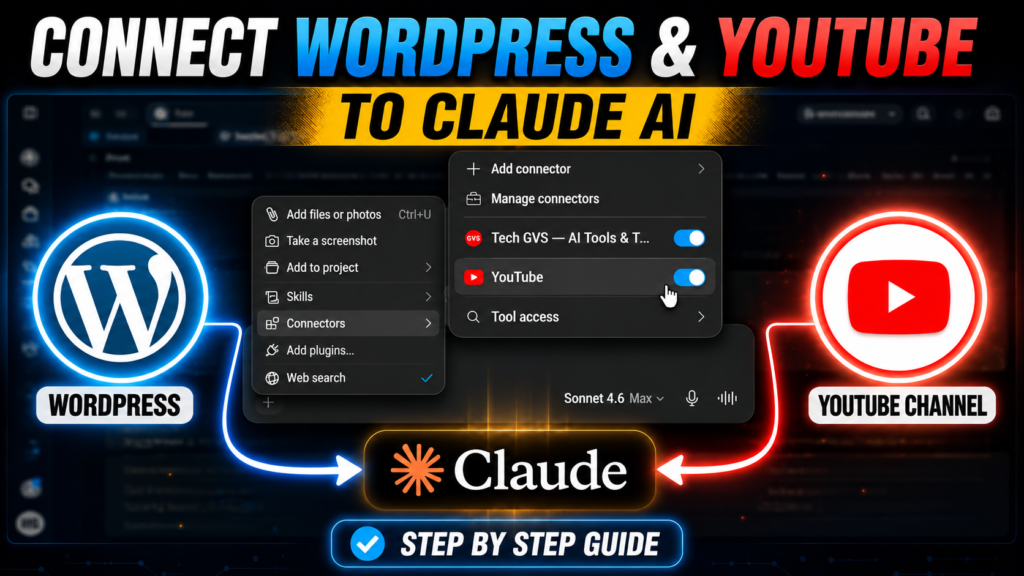
The YouTube connection works differently from WordPress — and honestly, it’s even simpler. Instead of a plugin, it uses a Remote MCP Server URL that you paste directly into Claude’s connector settings.
Step: Add the Remote MCP Server URL
Open your Claude AI account and go to Settings → Connectors. Click the + icon to add a new connector. You’ll see a field for Remote MCP Server. This is where you paste the YouTube MCP connection URL.
This URL “https://mcp.tubealfred.com/“ — just copy it exactly and paste it into that field. Click Add, wait a moment, and the Connect button will appear. Click Connect.
Sign In and Approve Read Access
A new page will open in your browser, asking you to sign into your Google account. Once logged in, you’ll see a permissions screen. Here’s the key thing to understand: Claude only asks for Read-Only access to YouTube. It will never edit, delete, or upload anything to your channel.
Here’s exactly what this means:
- ✅ Claude can read your channel data, video details, and performance info
- ✅ Claude can give you personalized content strategy and growth advice
- ✅ Claude can suggest video titles, descriptions, and tags based on your niche
- ❌ Claude cannot upload, edit, or delete any videos from your channel
- ❌ Claude cannot change any YouTube account settings
Your channel stays 100% yours. Claude is purely an advisor here. Go ahead and approve the permissions — you’re done. Your YouTube channel is now connected to Claude AI.
What Can Claude Do After Connecting?
Once you’ve completed the full Claude WordPress MCP integration and YouTube connection, here’s what becomes possible — and it’s honestly more than most people expect:
- 📝 Write full SEO blog posts and publish them directly on your WordPress site
- 🔍 Analyze your existing content for SEO gaps and suggest keyword improvements
- 📄 Create and update pages through simple chat commands
- 📊 Study your YouTube channel and suggest content topics based on what’s working in your niche
- 🎯 Plan a content calendar that aligns your blog and YouTube strategy
- 🔗 Suggest internal linking opportunities between your blog posts
- 📱 Write video descriptions, titles, and tags for your YouTube videos automatically
- 🤖 Run entirely automated workflows — from YouTube video to published blog post — in minutes
The real magic happens when you use both connections together. “Based on my latest YouTube video, write a matching SEO blog post with proper headings and internal links, and publish it as a draft on my WordPress site.” Claude handles the entire pipeline. That’s the power of this setup.
WordPress Permission Levels — What Should You Choose?
If you’re unsure which permission settings to use when you connect Claude AI to WordPress, this comparison table will help you decide based on your goals:
| Permission Level | Read | Write & Create | Delete | Update | Best For |
|---|---|---|---|---|---|
| Read Only | ✅ Yes | ❌ No | ❌ No | ❌ No | Beginners testing the setup; getting suggestions only |
| Write + Read | ✅ Yes | ✅ Yes | ❌ No | ❌ No | Content creators who want Claude to publish posts |
| Full Access (Recommended) | ✅ Yes | ✅ Yes | ⚠️ Approval | ⚠️ Approval | Full automation with safety controls on sensitive actions |
My recommendation: Start with Write + Read for your first week so you can watch what Claude does. Once you’re comfortable, switch to Full Access with Delete and Update set to Need Approval. That’s the sweet spot between automation and safety.
Frequently Asked Questions
How do I connect a website to Claude?
The easiest way in 2026 is using the Easy MCP Tool plugin on WordPress. Go to Plugins → Add New → search “Easy MCP Tool” → install and activate it → click on Claude Connector → hit Add and then Connect. The full connection takes under 5 minutes.
Can Claude update a WordPress website?
Yes — once you connect Claude AI to WordPress with write permissions enabled, Claude can create new pages, write and publish blog posts, update existing content, and manage your site’s structure, all through a simple chat interface.
How to accept Claude access in WordPress?
After installing Easy MCP Tool and clicking Connect, you’ll see an access level screen. Select Full Access for full automation, then configure individual permissions — set Read and Write to Allow, and keep Delete and Update on Need Approval for safety.
How do I add AI to WordPress?
Go to WordPress Dashboard → Plugins → Add New, search for “Easy MCP Tool”, install and activate it. This sets up the complete Anthropic Claude WordPress integration directly inside your existing WordPress site — no developer or coding needed.
Can Claude AI watch YouTube videos?
Claude cannot play or watch videos directly. However, with a YouTube MCP connection, Claude can read your channel data, analyze video metadata and transcripts, and give detailed content strategy advice based on your real channel performance — which is often more useful than watching.
How to work with Claude on YouTube?
Connect your YouTube channel by adding a Remote MCP Server URL in Claude’s Connectors settings. Once approved with read-only access, you can ask Claude things like: “What topics should I cover next based on my channel’s performance?” and get data-driven answers.
Is the Claude WordPress MCP setup completely free?
Yes. The Easy MCP Tool plugin is free, and Claude’s free account fully supports this connection. You can connect Claude AI to WordPress and your YouTube channel without paying for any tool or subscription.
Final Thoughts — 10 Minutes Today, Hours Saved Every Week
If you’ve made it this far, you already know this isn’t just another AI gimmick. The ability to connect Claude AI to WordPress and your YouTube channel represents a genuine shift in how content creators and bloggers work in 2026.
Think about what this gives you. Claude can research a topic, write a full SEO article, publish it to your site, then analyze your YouTube data to suggest your next video topic — all in the time it used to take you to write just the introduction. That’s not replacing your creativity. That’s amplifying it.
The Claude WordPress MCP integration through Easy MCP Tool is genuinely one of the most powerful free setups available to bloggers and creators today. And connecting your YouTube channel adds an intelligence layer that would have required a paid analytics tool just a year ago.
The setup takes 10 minutes. The results show up every single week after that.
Your next move: Head to your WordPress dashboard right now, install Easy MCP Tool, and make your first Claude connection. Once that’s done, come back and add your YouTube channel. By the end of today, you’ll have an AI assistant that knows your website and your channel — and can act on both.
Have questions or hit a snag during setup? Drop a comment below — I read every message and I’ll personally help you get it working.
