


How to Install Ollama and Run Gemma 4 Locally on PC — Full Guide for All Models (2026)

Table of Contents
- What Is Gemma 4 — And Why Run It Locally?
- All 4 Gemma 4 Models Explained
- Which PC Specs Can Run Which Model?
- Step-by-Step: Install Ollama on Windows 11
- How to Run Gemma 4 Using Ollama
- Video Demo — Watch Gemma 4 Install in Action
- Running Gemma 4 on a Low-End PC (No GPU Guide)
- Pro Tips to Get More Speed Without a GPU
- Frequently Asked Questions
- Conclusion
What Is Gemma 4 — And Why Run It Locally?
Let me be direct with you. When Google dropped Gemma 4 on April 2, 2026, a lot of us in the local AI community had the same reaction: “Is this actually free? And can my regular PC handle it?”
The answer to both is yes — with some conditions. And that’s exactly what this guide is about.
Gemma 4 is Google DeepMind’s fourth generation of open-weight AI models. “Open-weight” means you get the actual model files to run on your own machine. No API key, no cloud subscription, no data leaving your laptop. You download it once and it works offline forever. It’s released under the Apache 2.0 license, which means you can even build commercial products on top of it.
Now, why would you want to run Gemma 4 locally instead of just using ChatGPT or Gemini online?
- Privacy: Your prompts never leave your machine. If you’re working on code, client data, or anything sensitive, this matters.
- Cost: Zero. No monthly fees. Run it 24/7 if you want.
- Offline use: Train, travel, or work from anywhere — no internet needed after the first download.
- Speed control: No rate limits, no queuing behind other users.
The tool we’ll use to run it is Ollama — a simple command-line app that handles everything: downloading the model, managing memory, and giving you a chat interface in your terminal. Think of it as Docker, but for AI models. Two commands and you’re talking to Gemma 4.
But before we get to installation, you need to know which of the four Gemma 4 models actually fits your PC. Because picking the wrong one will either crash your machine or waste potential. Let’s break them all down.
All 4 Gemma 4 Models Explained — Which One Is Right for You?
Gemma 4 doesn’t come as one single model. Google released four variants, each targeting a different type of hardware. Here’s a plain-English breakdown.
Gemma 4 E2B — The Featherweight
The “E” in E2B stands for “Effective.” This model has 2.3 billion effective parameters, but its actual file size is around 7.2 GB because of a clever architecture called Per-Layer Embeddings (PLE). Don’t worry about the technical name — the point is it runs on basically anything.
E2B is Google’s answer to on-device AI. It’s designed for phones, Raspberry Pi devices, and entry-level laptops. The 128K context window is genuinely impressive for this size. It also supports image and audio input natively.
What it’s not great at: deep reasoning, complex math, multi-step code generation. Use it for quick Q&A, summarization, and lightweight tasks. If you need it to write a full app architecture? You’ll feel the limits.
Gemma 4 E4B — The Sweet Spot
This is the model most people should start with. E4B has 4.5 billion effective parameters, downloads as a roughly 9.6 GB file, and on a 2024-era laptop with 16GB RAM, it runs at about 2–5 tokens per second on CPU only.
Slow? A bit. But usable. For writing, summarizing docs, or answering code questions, 3 tokens/sec is workable — especially when it’s completely free and offline.
E4B scored 80% on HumanEval coding benchmarks. For context, Gemma 3’s 27B model scored 29% on the same test. So yes, this smaller model is genuinely smarter at coding than last year’s large one. That’s the kind of jump that gets people excited.
Ollama’s default when you type ollama run gemma4 is E4B. That tells you something about where the community has landed on this one.
Gemma 4 26B MoE — The Smart One
MoE stands for Mixture of Experts. Here’s why it matters for your PC: even though this model has 26 billion total parameters, it only activates about 3.8 billion of them at any given moment during inference. That means it runs at the speed of a 4B model while producing output quality closer to a 26B model.
The file is ~18 GB. You’ll need at least 16 GB of VRAM for a comfortable GPU experience, or a lot of patience if you’re running on CPU-only RAM. On a 16GB system with no GPU, it technically runs but expect 0.5–1 token per second. That’s painful for a conversation but fine for batch processing or occasional use.
If you have a dedicated GPU with 8–12 GB VRAM, this is your go-to model. The quality-to-resource ratio is genuinely hard to beat.
Gemma 4 31B Dense — The Beast
The 31B Dense is Gemma 4’s flagship. Every single one of its 31 billion parameters fires on every token. It’s sitting at #3 on Arena AI’s text leaderboard with an ELO score of 1452, ahead of models 20x its size.
You need serious hardware for this one. The ~20 GB download requires 24 GB+ of VRAM to run comfortably. On CPU-only machines, it’s not worth attempting — you’ll see under 1 token per second and wait minutes for a reply.
If you have an RTX 3090, RTX 4090, or an Apple M2/M3 Mac with 32 GB+ unified memory, this is where local AI starts feeling like science fiction.
Which PC Specs Can Run Which Gemma 4 Model?
Here’s the honest breakdown. I’ve combined Google’s official specs with real-world community testing to give you numbers you can actually plan around.
| Model | Parameters (Effective) | File Size | Min RAM (CPU Only) | Min VRAM (GPU) | Speed (CPU) | Best For |
|---|---|---|---|---|---|---|
| Gemma 4 E2B | 2.3B | ~7.2 GB | 8 GB | 4 GB | 5–8 tok/s | Old laptops, Raspberry Pi, phones |
| Gemma 4 E4B | 4.5B | ~9.6 GB | 10 GB free | 6 GB | 2–5 tok/s | Laptops, 8–16 GB RAM PCs (recommended start) |
| Gemma 4 26B MoE | 3.8B active / 26B total | ~18 GB | 18–20 GB free | 8–16 GB | 0.5–1 tok/s | Mid-range desktops, RTX 3060/4060 GPUs |
| Gemma 4 31B Dense | 30.7B | ~20 GB | 32 GB+ | 24 GB+ | Not practical | RTX 4090, Mac with 32 GB+ unified memory |
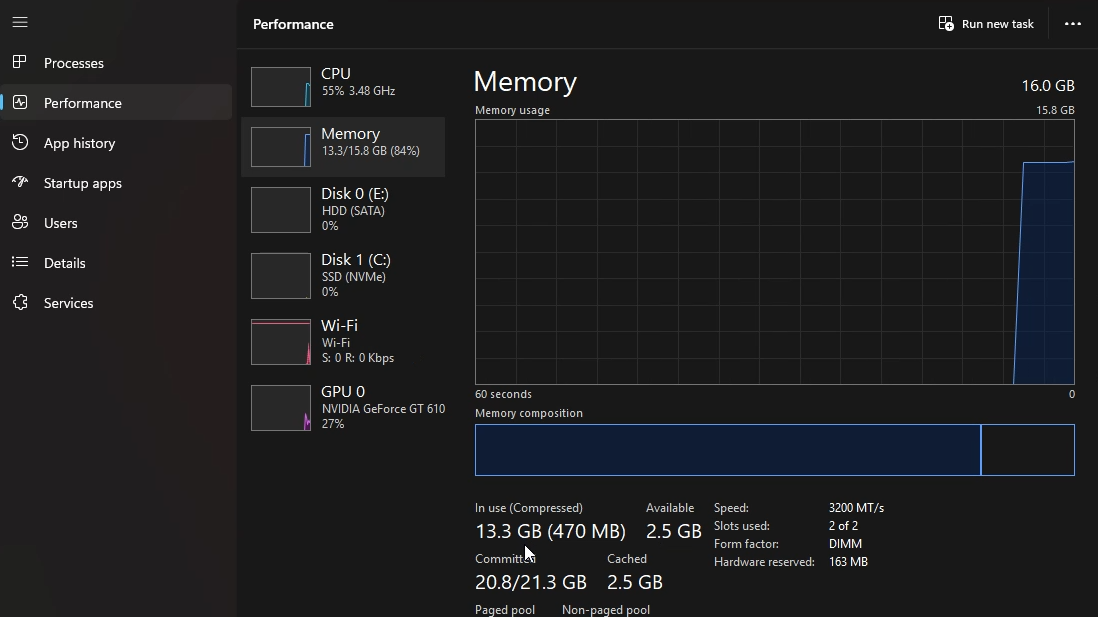
Quick rule of thumb: Take the model’s file size and add 30–50% for RAM overhead during inference. For E4B at ~9.6 GB, you need about 10–12 GB of free memory. That’s why a 16 GB machine runs it, but just barely if Chrome is open in the background.
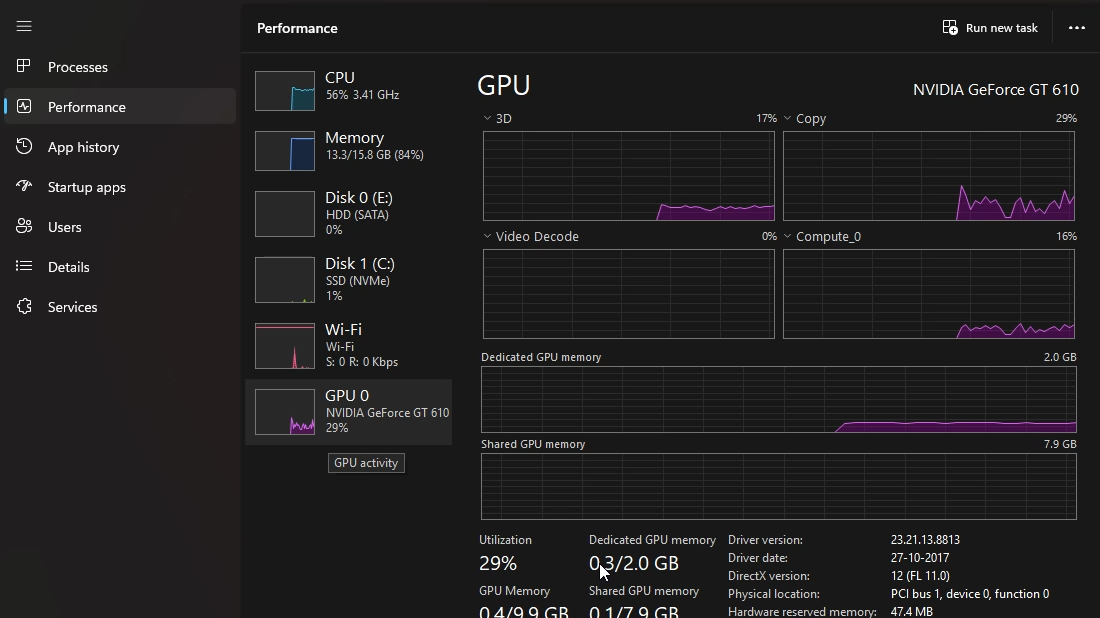
One thing worth knowing: if you don’t have a dedicated GPU, Ollama will automatically use your system RAM for CPU inference. It works, it’s just slower. The smaller models (E2B, E4B) are genuinely usable on CPU-only machines. The 26B and 31B are not — at least not for real-time chat.
Step-by-Step: How to Install Ollama on Windows 11
Ollama is the easiest way to run Gemma 4 locally. Here’s how to get it set up on Windows 11 from scratch.
Step 1 — Download Ollama
Go to ollama.com and click the Download button for Windows. It’ll give you a standard .exe installer. Run it, follow the prompts — it installs like any regular app and adds the ollama command to your system path automatically.
You’ll need Ollama v0.20.0 or later for full Gemma 4 support. Google released Gemma 4 on April 2, 2026, and Ollama shipped same-day support within 24 hours. If you have an older version already installed, update it first.
Step 2 — Verify the Installation
Open Command Prompt (press Win + R, type cmd, hit Enter) and run:
ollama --version
If you see a version number, you’re good. If Windows says “command not found,” restart your PC and try again — the installer sometimes needs a fresh PATH reload.
Step 3 — Pull Your First Gemma 4 Model
Still in Command Prompt, run this to download the E4B model (the recommended starting point):
ollama pull gemma4
This downloads the default E4B variant — about 9.6 GB. Your download speed determines how long this takes. On a typical Indian broadband connection (50–100 Mbps), expect 15–25 minutes.
To pull a specific variant, use the tag:
ollama pull gemma4:e2b— smallest, fastest on weak hardwareollama pull gemma4:e4b— default, recommended for 8–16 GB RAM machinesollama pull gemma4:26b— best quality for mid-range GPU setupsollama pull gemma4:31b— top quality, needs serious hardware
Step 4 — Verify the Model Downloaded
Run this to see what models you have installed:
ollama list
You should see gemma4:latest or whatever tag you pulled, along with its size and the date it was added.
How to Run Gemma 4 Using Ollama — Start Chatting
Once the model is downloaded, running it is one command:
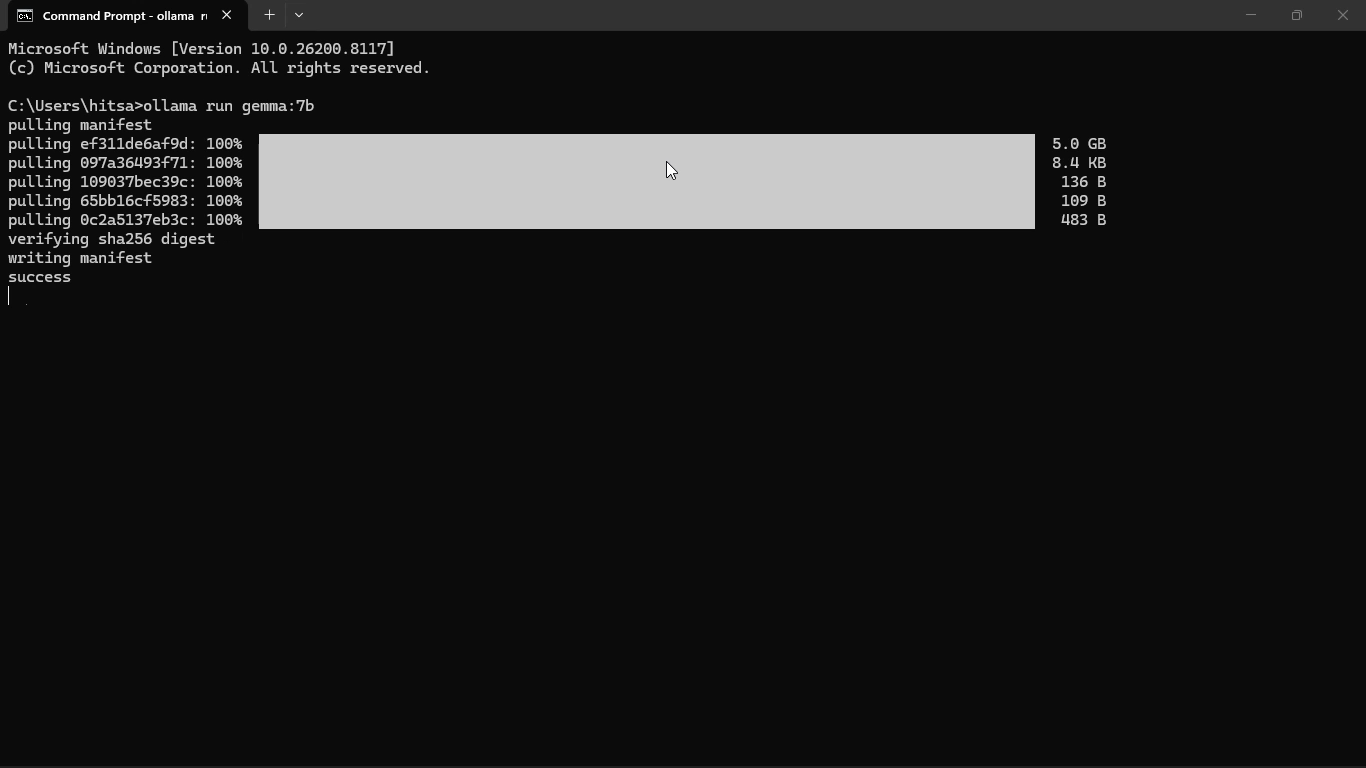
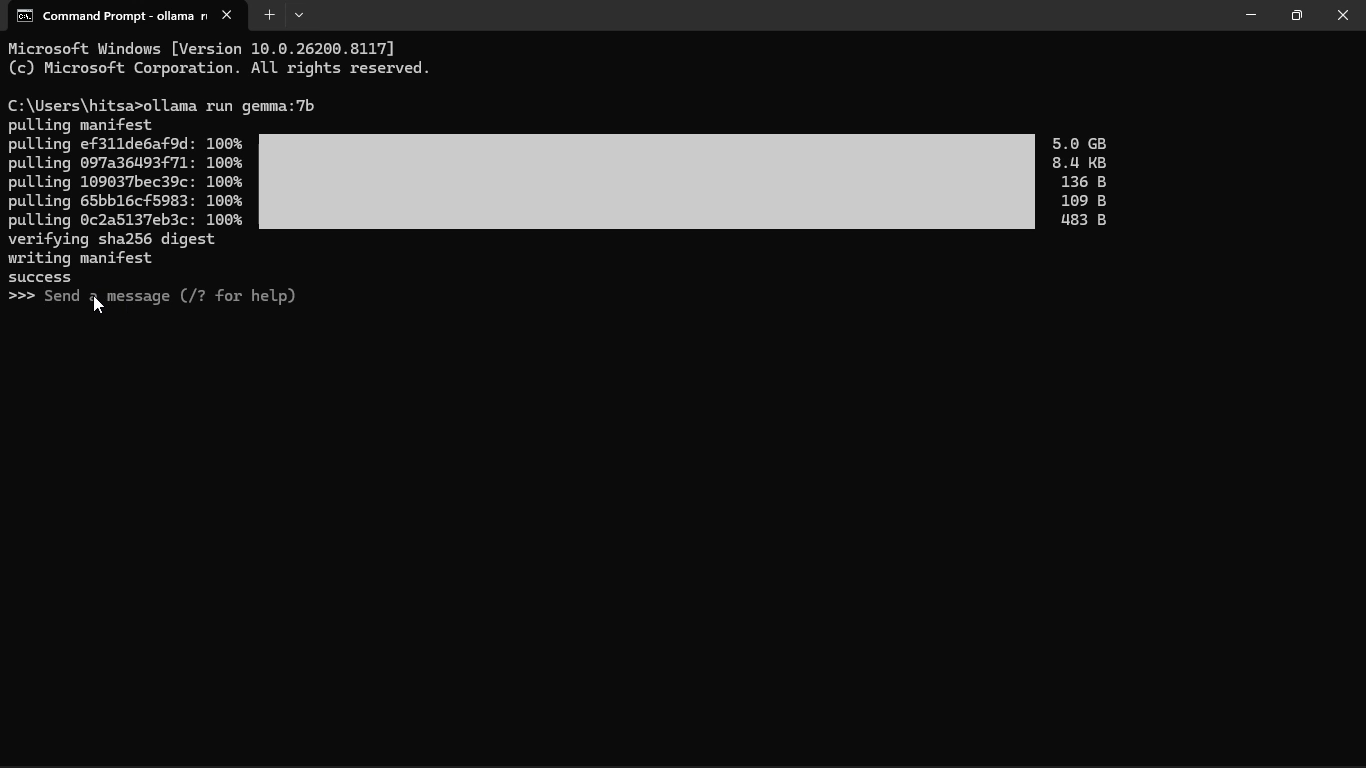
ollama run gemma4
Ollama loads the model into memory (this takes 10–30 seconds depending on your hardware), and then you get a >>> prompt in your terminal. Type anything and press Enter. That’s it. You’re now running a free, offline, private AI on your own machine.
To run a specific model size:
ollama run gemma4:e2bollama run gemma4:e4bollama run gemma4:26bollama run gemma4:31b
To stop chatting, type /bye and press Enter, or hit Ctrl + D.
Optional — Use a GUI Instead of Terminal
If typing in Command Prompt feels uncomfortable, install Open WebUI — a browser-based chat interface that connects to your local Ollama instance. Once set up, you get a ChatGPT-style interface running entirely on your PC. Visit github.com/open-webui/open-webui for installation instructions.
Optional — Limit Context to Save RAM
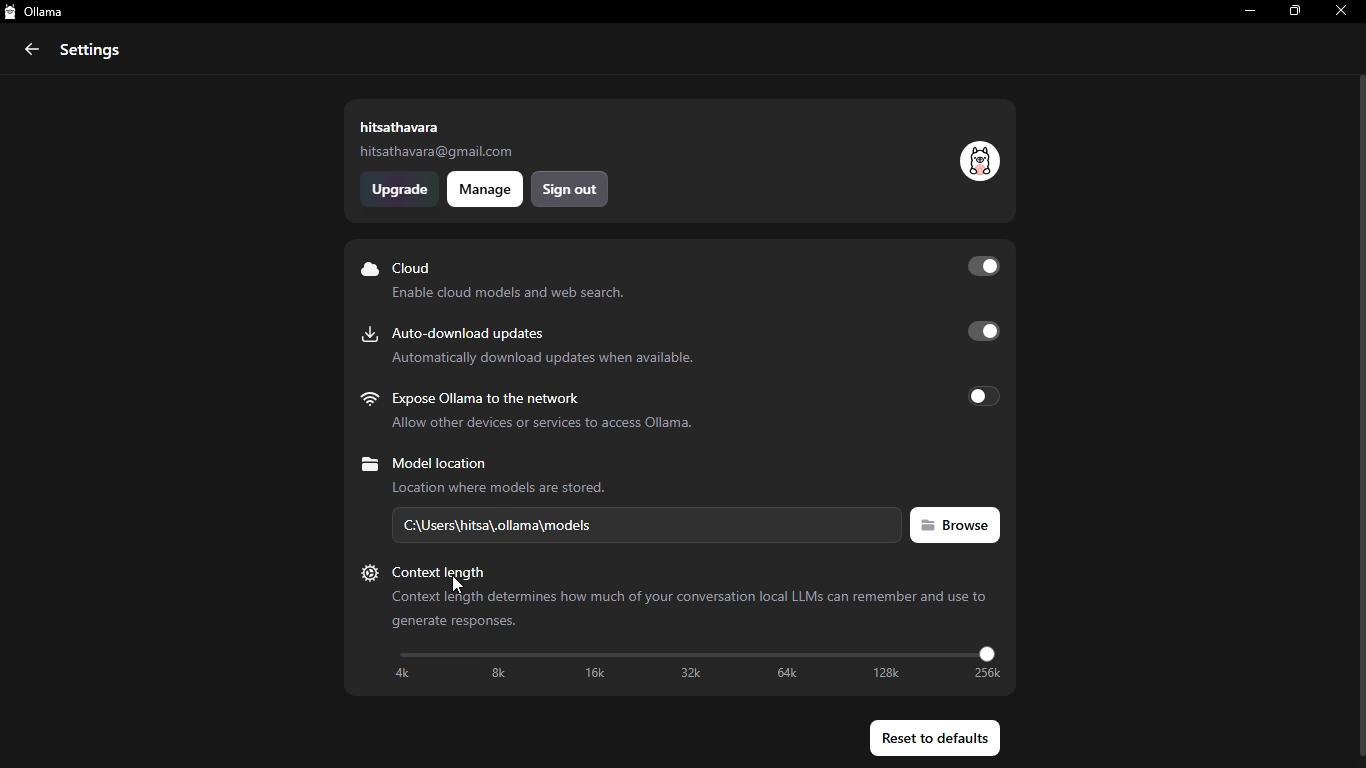
By default, Gemma 4 tries to use its full context window (128K for E4B). On a 16 GB machine, that’s a lot. You can limit it to 4K or 8K tokens for faster, lighter usage:
ollama run gemma4 --num-ctx 4096
For most conversations, 4K context is plenty. You won’t notice the difference in a typical chat session.
Video Demo — Watch Gemma 4 Get Installed in Real Time
Reading a step-by-step guide is one thing. Watching someone actually do it on a real machine is another.
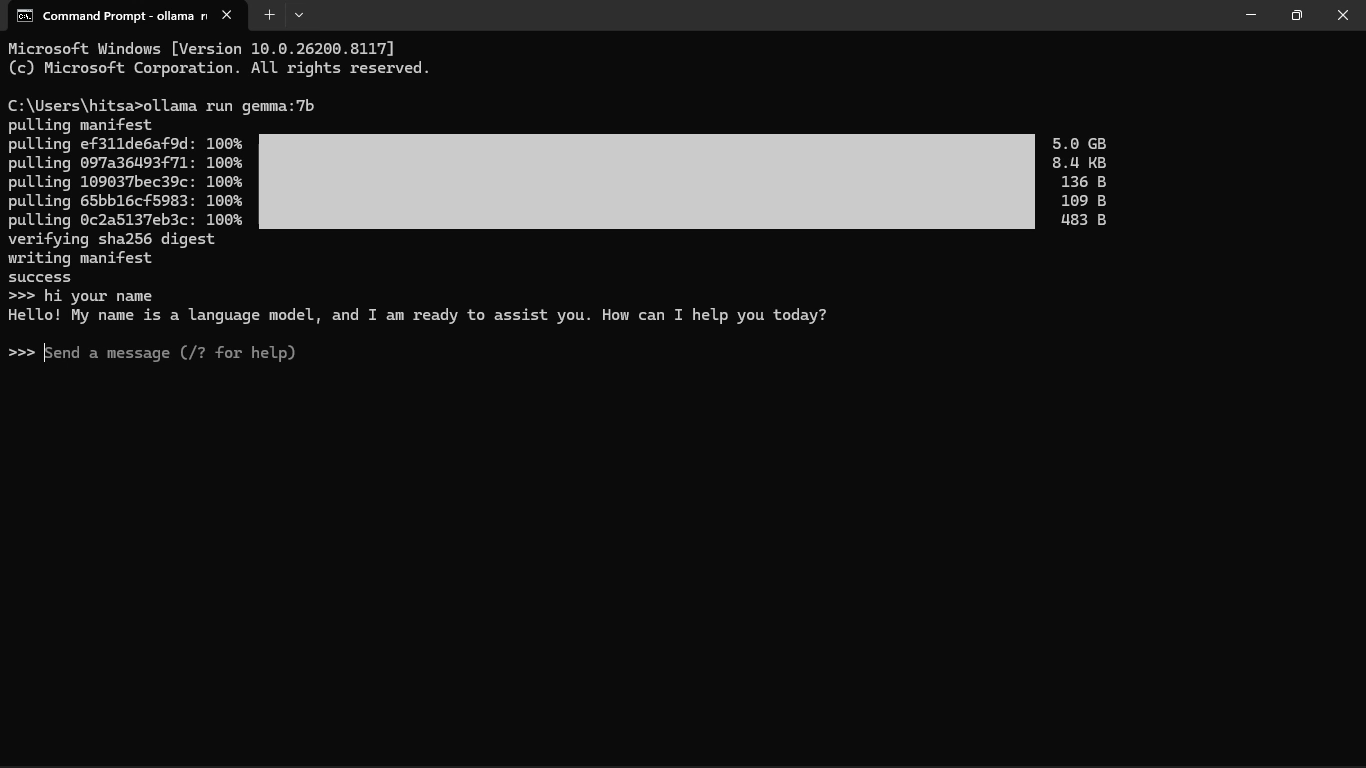
I uploaded a hands-on demo video where you can see the exact installation process on a real Windows 11 PC — the same kind of mid-range machine most of you are probably running. No gaming GPU, no fancy hardware. Just a regular PC with 16 GB of RAM and an Intel processor.
In the video, I walk through:
- Downloading and installing Ollama on Windows 11
- Pulling the Gemma 4 E4B model using the terminal
- Running the first chat session in Command Prompt
- How it actually feels to use — real response times, real prompts, no editing
- What happens when you try the E2B model as a comparison
This wasn’t meant to be a polished production. I recorded it as a quick test to show what the experience actually looks like for a normal user with normal hardware. No cuts, no voiceover — just a real install demo.
Watch the video here:[YouTube video link — search for the channel or check the video description for the direct link]
If you’ve already tried the installation and ran into errors, the video might help you spot where things went sideways. The most common issue people hit is RAM swapping — I cover that in the video and in the next section below.
Running Gemma 4 on a Low-End PC — No GPU, CPU Only
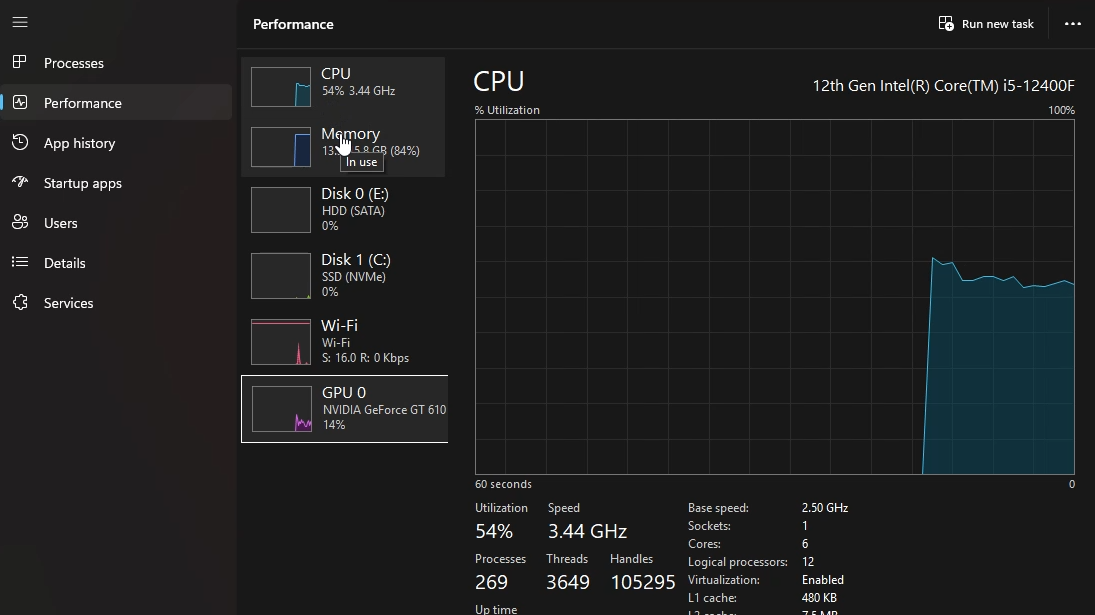
Let’s be honest about something: if your PC has no dedicated GPU, running Gemma 4 locally is going to feel slow compared to cloud APIs. That’s the tradeoff. But “slow” doesn’t mean “unusable,” and for many use cases, 2–4 tokens per second is perfectly workable.
Here’s what to expect on a typical budget or mid-range PC (Intel Core i3/i5, 16 GB RAM, integrated graphics, Windows 11):
| Model | Expected Speed (CPU Only) | Practical for Chat? | Recommendation |
|---|---|---|---|
| Gemma 4 E2B | 5–8 tokens/sec | Yes, comfortably | Best choice if RAM is tight (<12 GB free) |
| Gemma 4 E4B | 2–5 tokens/sec | Yes, with patience | Best choice for 16 GB RAM, no GPU — start here |
| Gemma 4 26B MoE | 0.5–1 token/sec | Not really for live chat | Avoid on CPU-only unless you’re doing batch tasks |
| Gemma 4 31B Dense | < 0.5 tokens/sec | No | Don’t try it on CPU-only hardware |
Why does this happen? Without a GPU, Ollama runs all computation through your CPU using system RAM. Intel integrated graphics (like UHD 730 that comes with most H610 motherboards) don’t have enough dedicated VRAM to offload the model. So everything runs on RAM, which is both slower and shared with your OS.
The practical verdict for a 16 GB RAM, no-GPU Windows 11 PC: stick with Gemma 4 E4B. It fits comfortably (about 10–12 GB loaded), gives you real answers, and runs at a speed that won’t make you want to close the tab.
Pro Tips to Get More Speed Without Buying a GPU
If you’re running Gemma 4 on CPU and want to squeeze out better performance, here are the things that actually make a measurable difference:
- Close Chrome and other RAM-heavy apps before running Ollama. Chrome alone can eat 3–4 GB of RAM. On a 16 GB machine, that’s significant. Use Edge or Firefox with fewer tabs if you need a browser open.
- Limit context window to 4096 or 8192 tokens. Use
--num-ctx 4096when launching the model. Most conversations don’t need 128K tokens, and the smaller context uses far less memory. - Use Q4_K_M quantization. Ollama handles this automatically for most models, but if you’re pulling GGUF files manually from Hugging Face, Q4_K_M is the community consensus for the best quality-to-size ratio. Q8 is higher quality but nearly doubles the memory requirement.
- Run Ollama as the only active process. Especially when loading 26B — every free gigabyte of RAM matters. Disable Windows startup programs you don’t need (Task Manager → Startup).
- Consider upgrading RAM to 32 GB. DDR4 RAM is cheap now. Going from 16 GB to 32 GB on an H610 motherboard (the Gigabyte H610M K DDR4 supports up to 64 GB) would let you run the 26B MoE model with headroom to spare. That’s a bigger quality jump than buying any GPU under ₹10,000.
Frequently Asked Questions
Q1: Can I run Gemma 4 on a PC with 8 GB of RAM?
Yes, but only the E2B model. At 8 GB total RAM, you’ll have about 4–5 GB free after Windows loads. E2B’s minimum is 4 GB, so it fits — barely. Close everything else first. If you’re regularly hitting RAM limits, E2B at 8 GB feels noticeably sluggish. Consider upgrading to 16 GB if possible.
Q2: Do I need an internet connection to use Gemma 4 after downloading?
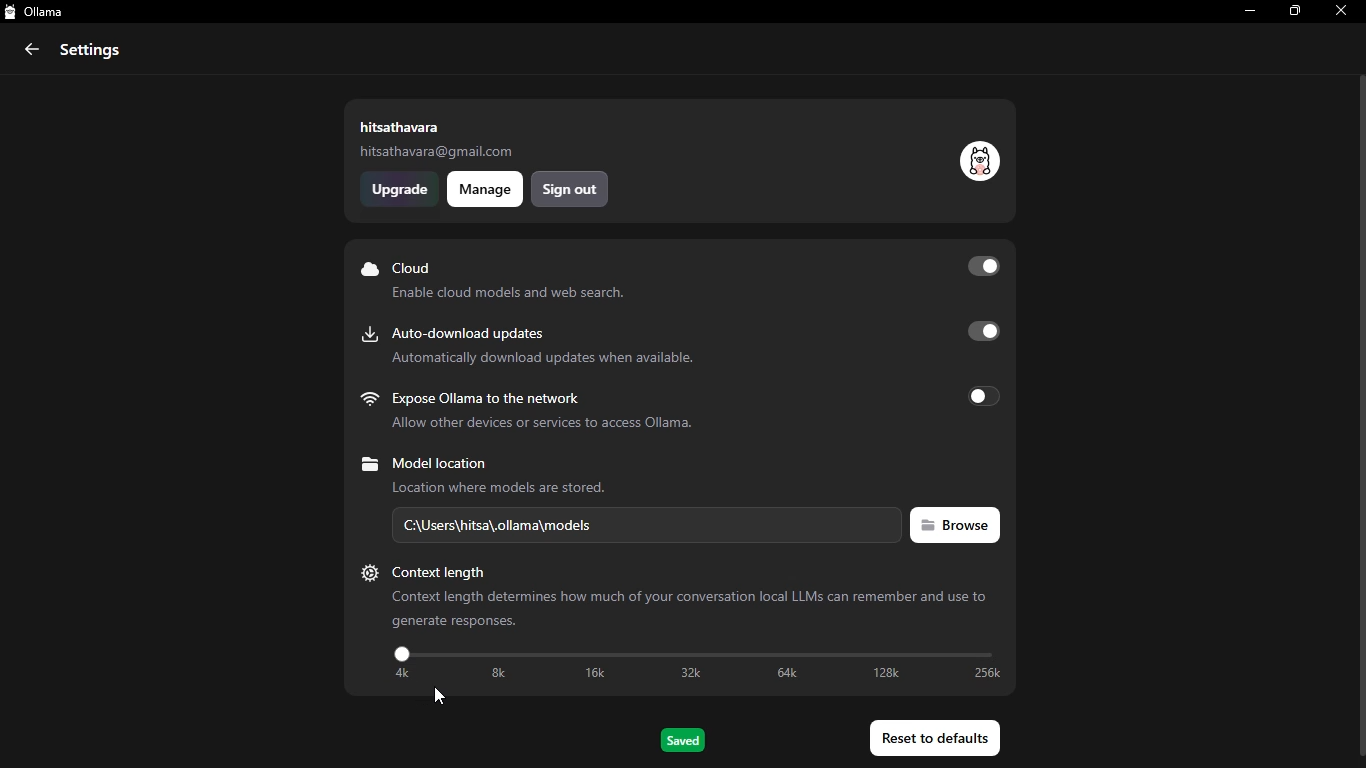
No. Once the model file is downloaded via ollama pull, it runs entirely offline. Ollama stores model files in your user folder (usually C:\Users\YourName\.ollama\models). No pings, no telemetry, no data sent anywhere.
Q3: Which is better for coding — Gemma 4 E4B or 26B?
For simple code tasks (writing functions, debugging small scripts, explaining code), E4B is surprisingly capable. Its HumanEval score of 80% is strong. But for complex multi-file projects, architectural reasoning, or working with unfamiliar frameworks, the 26B model’s deeper context awareness starts to show. If your hardware can handle 26B, use it for serious coding work.
Q4: Can Gemma 4 see images? How do I use that?
Yes. All four Gemma 4 models support image input. In Ollama’s terminal interface, you can pass an image using the /add image command followed by a local file path. If you’re using Open WebUI, you can simply drag and drop an image into the chat window, the same way you’d do it with ChatGPT-4o.
Q5: Is there a difference between the base model and the “IT” (instruction-tuned) version?
Yes. The base model is trained to predict the next token — it’s a text completer, not a conversational assistant. The instruction-tuned version (gemma4:e4b in Ollama) is trained to follow instructions, answer questions, and hold a conversation. For almost all practical use cases, you want the IT version, which is what Ollama serves by default.
Q6: How is Gemma 4 different from Gemini?
Gemini is Google’s proprietary, cloud-hosted model family. You access it via API, your data goes to Google’s servers, and usage costs money beyond the free tier. Gemma 4 is open-weight — you download the model files and run them yourself. Gemini is generally more capable, especially for complex tasks, but Gemma 4 is private, free to run locally, and works offline.
Q7: Can I use Gemma 4 for commercial projects?
Yes. Gemma 4 is released under the Apache 2.0 license, which allows commercial use, modification, and redistribution without restrictions. This is a change from earlier Gemma versions, which had more restrictive licensing. You can build products, sell services, or fine-tune the model for your own use case.
Conclusion — Your Free Local AI Is One Command Away
Getting Gemma 4 running locally used to feel like a project that required a research background and a gaming PC. It doesn’t anymore.
If you have 16 GB of RAM and Windows 11, you can run the E4B model right now — no GPU, no cloud account, no monthly fee. Three commands total: install Ollama, pull the model, run it. That’s genuinely it.
Here’s the short version of what to do based on your hardware:
- 8 GB RAM, no GPU:
ollama run gemma4:e2b— lightweight, works fine for basic tasks - 16 GB RAM, no GPU:
ollama run gemma4:e4b— your best bet, surprisingly capable - 16 GB RAM + 8–12 GB VRAM GPU:
ollama run gemma4:26b— the quality jump is real - 24 GB+ VRAM or 32 GB+ unified memory:
ollama run gemma4:31b— frontier-level local AI
And if you want to see how the installation actually looks on a real machine before you start? Check the video demo section above — I recorded the whole process without any cuts.
The fact that you can run a model that outperforms last year’s GPT-4 on math benchmarks, from your own PC, for free, offline — that’s something worth taking 20 minutes to set up. Go try it.