


How to Reset BIOS on Motherboard Complete Guide (2025)

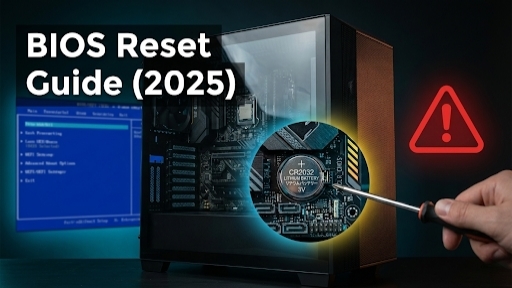
How to Reset BIOS on Motherboard: Complete Guide (2025)
Hello my name is Hit. Today we will know what you do that makes you need to Reset BIOS on Motherboard. Let’s know some reasons for it so you don’t make that mistake in the future.
Table of Contents
- 1. In which problems do you have to Reset BIOS/CMOS?
- 2. What happens by resetting BIOS? (Important for Users)
- 3. What precautions to take before Reset?
- 4. Method 1: Reset from BIOS/UEFI menu (Safest)
- 5. Method 2: Clear CMOS using CMOS jumper
- 6. Method 3: BIOS reset by removing CMOS battery
- 7. Method 4: Clear CMOS button / dedicated button
- 8. What is mandatory to set after BIOS reset?
- 9. Laptop vs Desktop: special note
- 10. FAQ (Frequently Asked Questions)
In which problems do you have to Reset BIOS/CMOS?
1. PC is not booting / continuous restart loop
- Logo appears as soon as power on and restarts immediately, never reaches Windows.
- Even after pressing BIOS key (Del/F2 etc.) BIOS/UEFI does not open, or messages like “CMOS checksum error / BIOS ROM error” appear. In such a situation, there might be corrupt BIOS settings or wrong hardware configuration, for which reset is useful to bring to factory defaults.
2. System unstable due to Overclock, RAM/XMP, Voltage
- After CPU/GPU/RAM overclock, system starts to freeze, crash, blue screen (BSOD) or random reboot.
- PC does not boot after enabling XMP/EXPO profile or hangs only in heavy load. This time the safe way is to Clear CMOS and remove all overclock/voltage settings and come back to standard stable settings.
3. Display/boot problem due to Wrong BIOS settings
- After accidentally changing wrong boot mode (Legacy/UEFI), SATA mode (RAID/IDE/AHCI) or GPU init order, screen remains black or “No boot device” error comes.
- After wrongly checking Secure Boot, CSM, TPM etc., OS stops booting and exact setting is not remembered in BIOS. In such a confusing situation, doing full BIOS reset remains easier than finding individual settings.
4. Compatibility issues after new hardware
- PC does not POST after installing new RAM, CPU, GPU, SSD, beeps/LED error codes appear and Clear CMOS is recommended in manufacturer guide.
- After buying Used PC/ old system, system behaves weirdly due to weird BIOS settings of previous owner. Here resetting BIOS and making hardware detect again and run on default parameters is a good first step.
5. Forgetting BIOS password / not getting access
- Password is set in BIOS/UEFI setup and you don’t remember it; want to go to Windows but need to change settings in BIOS (boot order, virtualization etc.). In some models, Clear CMOS/RTC reset is officially suggested for supervisor/password reset too.
6. Power event or CMOS corruption
- Due to heavy power fluctuation, improper shutdown or dead CMOS battery, error messages like “CMOS checksum bad / CMOS corruption detected” start appearing.
- System time resets frequently, weird hardware errors come and manufacturer support docs say try NVRAM/CMOS reset. This is also a typical case where corrupt configuration is cleared by BIOS reset.
7. Before selling PC/changing use
- System is to be given/sold to someone else and want to remove current custom BIOS tweaks (overclock, passwords, boot priority) and give in clean default state. At this time also, doing BIOS reset once and giving fresh base configuration is considered good practice.
What happens by resetting BIOS? (Important for Users)
- Which settings get reset:
- Boot order, XMP/EXPO, overclock profiles, fan profiles, secure boot, virtualization, SATA mode (AHCI/RAID) settings like these.
- What does not change:
- Windows installation, personal data (documents, photos), games etc. remain safe on storage devices.
Note: BIOS update and BIOS reset are two different things (update means changing firmware version, reset means making current settings default).
What precautions to take before Reset?
- First shutdown the PC. Unplug the power cable. Keep the PSU switch OFF.
- Before opening cabinet, touch metal part to do static discharge (if possible, anti-static wrist strap can be mentioned).
- Keep Motherboard manual/official website open to see jumper/battery location on your Motherboard, because jumper/battery location changes according to model.
- If any special settings (RAID, custom fan curves, manual voltage) are used, keep a note/photo of it. Because it can be connected again at the same place.
Method 1: Reset from BIOS/UEFI menu (Safest)
Step 1: How to go into BIOS/UEFI
Restart PC and press key like Delete, F2, F10, Esc; key changes according to brands (ASUS/ASRock – Del/F2, MSI – Del, Gigabyte – Del/F12, F2/F10 more common in laptops). See table below for more.
| Brand | BIOS/UEFI Key | Note (Laptop/Desktop) |
|---|---|---|
| Dell | F2 or F12 | F2 is very common as BIOS, F12 as boot menu |
| HP | F10 | F10 for BIOS in most HP PCs, sometimes after Esc menu |
| Lenovo | F2, Fn+F2, F1, Enter | In ThinkPad first Enter, then F1 |
| ASUS | F2 or Del | F2 in laptop, Del/F2 in motherboard |
| Acer | F2 or Del | Usually F2/Del for BIOS |
| MSI | Del | Del for BIOS, F11 for boot menu |
| Gigabyte/Aorus | F2 or Del | Del/F2 in motherboard |
| ASRock | F2 or Del | Both common for BIOS |
| Toshiba | F2 | F2 for BIOS access in laptop |
| Samsung | F2 | F2 in most Samsung laptops |
| Microsoft Surface | Power + Vol Up | Press after device is completely shutdown |
This table is based on official web default keys; keep an eye on Instruction like “Press F2/Del to enter Setup” on screen at boot time too.
Step 2: Finding “Load Defaults” option
Options like “Load Setup Defaults”, “Load Optimized Defaults”, “Restore Defaults”, “Factory Default” remain in Exit or Save & Exit tab.
Step 3: Save & Exit
After selecting Option confirm “Yes” and come out with F10 or “Save Changes & Exit”; after reboot system will run on default settings.
If Windows does not boot then go to BIOS again and keep drive with OS first in boot order.
Method 2: Clear CMOS using CMOS jumper (Desktop Motherboard)
What is Jumper?
Small connector with 2 or 3 pins on motherboard, which has label like “CLR_CMOS”, “CLEAR_CMOS”, “CLRTC”, “JBAT1” next to it.
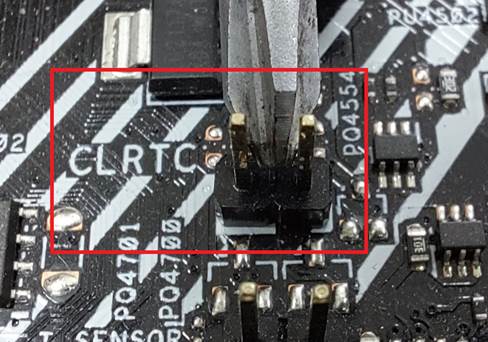
Step‑by‑step:
- PC completely off, unplug power cable, switch OFF PSU.
- Open cabinet side panel and find jumper location according to manual.
- 3‑pin setup: move jumper cap from 1–2 to 2–3 for 5–10 seconds then put back on 1–2.
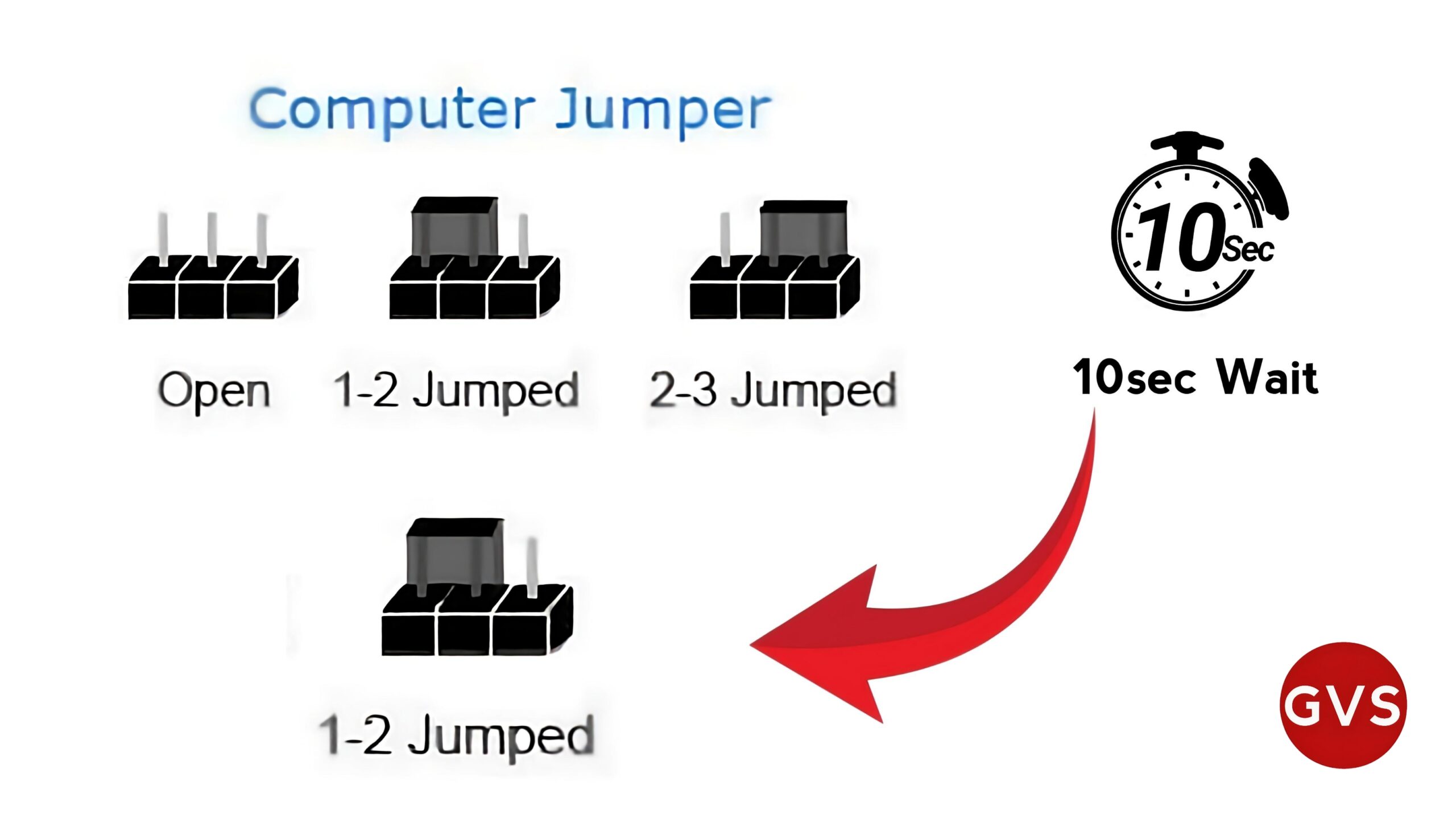
- 2‑pin setup: short the pins with jumper cap and remove after few seconds; take care it does not remain attached permanently.
- Then close everything, connect power again and turn ON PC.
Note: Never short jumper when power is connected. Risk of short circuit/injury remains.
Method 3: BIOS reset by removing CMOS battery
This is traditional method, will remain relevant for many users. So if you pay attention to this Method, it will be easier for Reset BIOS on Motherboard.
What does CMOS battery do?
Small coin cell battery like CR2032 powers BIOS settings and system clock, so settings remain saved even when PC is off.
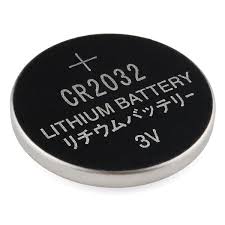
Step‑by‑step:
- PC completely off, unplug power, discharge leftover power by holding power button 10–15 seconds.
- Open Cabinet and find silver coin-shaped battery on motherboard.
- Press small clip in side, take out battery and keep for 5–10 minutes.
- Then put battery again in same orientation (positive side up is common).
- Close Cabinet and turn ON PC; warning like “CMOS checksum” might come on first boot, load default from there and proceed.
Note: If battery is very old, replace it for future stability.
Method 4: Clear CMOS button / dedicated button
Special section for new high-end boards.
- In many premium ASUS/MSI/Gigabyte/ASRock motherboards there is “Clear CMOS” button on rear I/O or board.
How to use:
- PC shutdown, power cable unplug.
- Press Clear CMOS button for 5–10 seconds and release, wait a little.
- Connect Power cable again and turn ON PC; BIOS settings will be on default.
Warning: Do not get confusion with “Flash BIOS” or “BIOS Flashback” button. It is for firmware update, not for reset. Do not click even by mistake.
8. What is mandatory to set after BIOS reset?
- Date & Time: Set again, otherwise errors may come in browser certificates, updates etc.
- Boot Order: Select SSD/HDD with OS as first device.
- XMP/EXPO: Enable XMP/EXPO profile again for RAM speed (if performance feels low immediately).
- If features like virtualization (VT‑x/AMD‑V), Secure Boot, TPM, Resizable BAR, Fast Boot, RAID were enabled earlier, will have to turn ON manually again.
If PC does not boot even after reset check what (cables, RAM seating, GPU, beep codes, etc.).
9. Laptop vs Desktop: special note
- For Desktop all above hardware methods (jumper, battery) are generally applicable.
- In Laptop, often battery/jumper do not reach easily. Many brands recommend software-based or service-mode reset, so always follow manufacturer’s official guide.
10. FAQ
- “Will Windows be deleted by resetting BIOS?”
→ No, only firmware settings get reset. - “How many times can BIOS reset be done?”
→ theoretically unlimited, but if needed frequently, there might be deeper hardware/software issue. - “What is difference between Reset and Update BIOS?”
→ reset = settings default, update = firmware version change.
If you got any help from my guide or have any question, definitely tell me in Comment.